Ninja 250R オイル交換

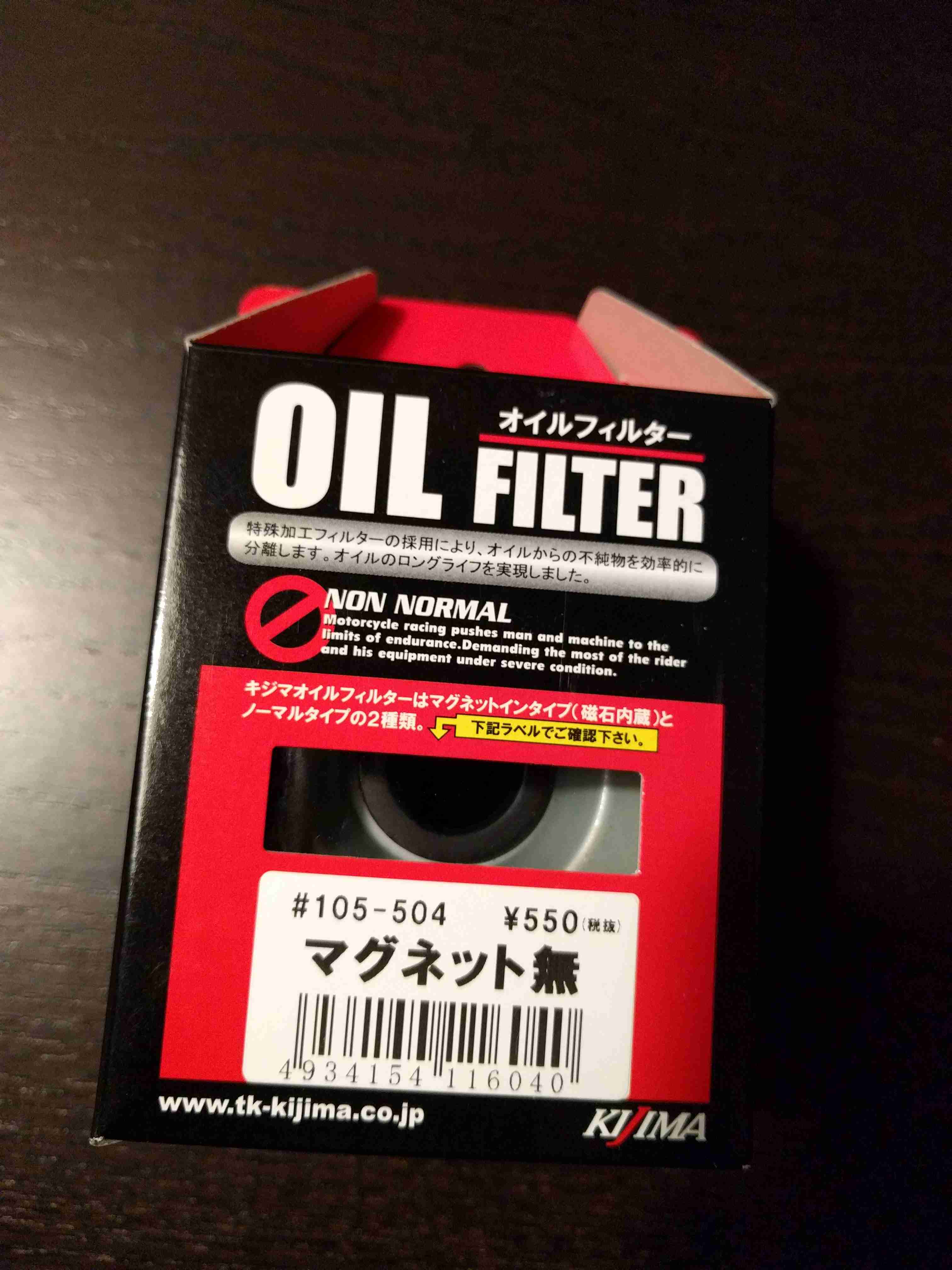
久しく交換していなかったので、天気も良いしNinjaオイル交換. 使用するもの 今回はエレメント交換も行うので、フィルター. オイル シリコングリス 他にも、ワッシャー、大小オーリングを使用します. 古いオイルの排出 まずはドレインボルトを外して、ドバーっと古いオイルを出します. これは、外したボルト わかりにくいけど、外したところ ちゃんとお手製のオイル廃棄箱を受け皿にしています. エレメント交換 下の画像の右側の大きな円の部分を外します. これは外したフィルター. 下から除くとこんな穴が空いてます. ドレインボルトよりもこっちを外すほうが、難しいですね. 円形の全方位からオイルが出てくるので、蓋やレンチや手がオイルで ヌレル こと間違い無し. 綺麗に拭き取ります. 外したフィルターを分解して、これもオイルを拭き取ります. これは、外した円形の蓋の裏側. 大きい方のオーリング(黒いゴム製の輪っか)が溝にはまってます. 今回はこのリングも交換します. これは、フィルタから外したところ. 画像の下の方に、小さい方のオーリングが同じように溝にはまっているので、 これも取り外して交換です. これが古いオーリング 新しいオーリングや、軸の部分にはシリコングリスを塗ってから装着. オイルを 2L 弱入れて完成. 良い休日でした.

2017-03-05 ·  2017-03-05 · 1 分 · 33 文字

ag 使い方メモ

The Silver Searcher AG よく使うオプション # ディレクトリ階層の深さ指定 --depth NUM Search up to NUM directories deep (Default: 25) # (マッチした)ファイル名のみを出力 -l --files-with-matches Only print filenames that contain matches (dont print the matching lines) # マッチしなかったファイル名を表示 -L --files-without-matches Only print filenames that dont contain matches # ファイル名にマッチしたものを出力 -g PATTERN Print filenames matching PATTERN # 行番号を非表示 --[no]numbers Print line numbers. Default is to omit line numbers when searching streams # 隠しファイルも検索 --hidden Search hidden files (obeys .*ignore files) # 全ファイルを検索(隠しファイル、無視指定ファイル含め検索) -u --unrestricted Search all files (ignore .agignore, .gitignore, etc.; searches binary and hidden files as well) # 大文字小文字区別 -s --case-sensitive Match case sensitively # 大文字を含んでいれば、大文字小文字区別 -S --smart-case Match case insensitively unless PATTERN contains uppercase characters (Enabled by default) # ファイル名を正規表現指定で制限検索(ex. ag -G '\.(c|h)' pattern) -G --file-search-regex PATTERN Limit search to filenames matching PATTERN Install For Windows The Silver Searcher windows port ag.zip Install For msys2 pacman -S mingw-w64-x86_64-ag help Usage: ag [FILE-TYPE] [OPTIONS] PATTERN [PATH] Recursively search for PATTERN in PATH. Like grep or ack, but faster. Example: ag -i foo /bar/ Output Options: --ackmate Print results in AckMate-parseable format -A --after [LINES] Print lines after match (Default: 2) -B --before [LINES] Print lines before match (Default: 2) --[no]break Print newlines between matches in different files (Enabled by default) -c --count Only print the number of matches in each file. (This often differs from the number of matching lines) --[no]color Print color codes in results (Enabled by default) --color-line-number Color codes for line numbers (Default: 1;33) --color-match Color codes for result match numbers (Default: 30;43) --color-path Color codes for path names (Default: 1;32) --column Print column numbers in results --[no]filename Print file names (Enabled unless searching a single file) -H --[no]heading Print file names before each file's matches (Enabled by default) -C --context [LINES] Print lines before and after matches (Default: 2) --[no]group Same as --[no]break --[no]heading -g PATTERN Print filenames matching PATTERN -l --files-with-matches Only print filenames that contain matches (don't print the matching lines) -L --files-without-matches Only print filenames that don't contain matches --[no]numbers Print line numbers. Default is to omit line numbers when searching streams -o --only-matching Prints only the matching part of the lines --print-long-lines Print matches on very long lines (Default: >2k characters) --passthrough When searching a stream, print all lines even if they don't match --silent Suppress all log messages, including errors --stats Print stats (files scanned, time taken, etc.) --vimgrep Print results like vim's :vimgrep /pattern/g would (it reports every match on the line) -0 --null --print0 Separate filenames with null (for 'xargs -0') Search Options: -a --all-types Search all files (doesn't include hidden files or patterns from ignore files) -D --debug Ridiculous debugging (probably not useful) --depth NUM Search up to NUM directories deep (Default: 25) -f --follow Follow symlinks -F --fixed-strings Alias for --literal for compatibility with grep -G --file-search-regex PATTERN Limit search to filenames matching PATTERN --hidden Search hidden files (obeys .*ignore files) -i --ignore-case Match case insensitively --ignore PATTERN Ignore files/directories matching PATTERN (literal file/directory names also allowed) --ignore-dir NAME Alias for --ignore for compatibility with ack. -m --max-count NUM Skip the rest of a file after NUM matches (Default: 10,000) --one-device Don't follow links to other devices. -p --path-to-agignore STRING Use .agignore file at STRING -Q --literal Don't parse PATTERN as a regular expression -s --case-sensitive Match case sensitively -S --smart-case Match case insensitively unless PATTERN contains uppercase characters (Enabled by default) --search-binary Search binary files for matches -t --all-text Search all text files (doesn't include hidden files) -u --unrestricted Search all files (ignore .agignore, .gitignore, etc.; searches binary and hidden files as well) -U --skip-vcs-ignores Ignore VCS ignore files (.gitignore, .hgignore, .svnignore; still obey .agignore) -v --invert-match -w --word-regexp Only match whole words -z --search-zip Search contents of compressed (e.g., gzip) files File Types: The search can be restricted to certain types of files. Example: ag --html needle - Searches for 'needle' in files with suffix .htm, .html, .shtml or .xhtml. For a list of supported file types run: ag --list-file-types -l, --files-with-matches list file type ag --list-file-types ...

2017-01-06 ·  2017-01-06 · 5 分 · 980 文字

Bookmarklet で煩わしいテストの手助けをする

Bookmarklet で煩わしいテストの手助けをする WEBでテストする際にたまに必要になるのが、100件クリックする、や入力項目全部に入力した状態で、 クリックするなど単純動作を繰り返す事。 単純作業である為、おそらく5回くらいクリックした時点で飽きてしまい、業務中に寝てしまう事になりそう。 以下のような Bookmarklet を準備しておけば、ちょっとした際に、さらっと js 書いて、100回でも、1000回でも クリックできます。 javascript:(function(f,urls,i,s){urls=["//ajax.googleapis.com/ajax/libs/jquery/2.1.1/jquery.min.js"/* ,"URL","URL",... */];for(i=0;i<urls.length;i++){s=document.createElement("script");s.src=urls[i];if(i==urls.length-1)s.onload=function(){f(jQuery.noConflict(true))};document.body.appendChild(s)}})(function($){/* 内部コード */}) 対象のページにできるだけ影響の無いように、かつ、CDNで jQury を持ってきて、後はやりたいことちょろっと書くだけ。しかもjQuery以外のライブラリもロードできる! 便利

2016-10-30 ·  2016-10-30 · 1 分 · 20 文字

ldapsearch コマンドで AD 情報を検索する

もう何がなんだかわからないので、とりあえずメモ。。 LDAP ワード集 DIT = Directory Information Tree DN = 識別名(Distinguished Name) DC = ドメイン構成要素(domain component) O = 組織名(organization) OU = 組織単位(organizational unit) CN = 一般名称(common name) sample.local ドメインの場合の検索方法 # ユーザ Administrator を検索 ldapsearch -x -LLL -D "cn=Administrator,cn=Users,dc=sample,dc=local" -W -b "cn=Administrator,cn=Users,dc=sample,dc=local" # CN Users に属するユーザを検索 ldapsearch -x -LLL -D "cn=Administrator,cn=Users,dc=sample,dc=local" -W -b "cn=Users,dc=sample,dc=local" 以下、 ldapsearch コマンドの OPTION 抜粋 ldapsearch opens a connection to an LDAP server, binds, and performs a search using specified parameters. The filter should conform to the string representation for search filters as defined in RFC 4515. If not provided, the default filter, (objectClass=*), is used. If ldapsearch finds one or more entries, the attributes specified by attrs are returned. If * is listed, all user attributes are returned. If + is listed, all operational attributes are returned. If no attrs are listed, all user attributes are returned. If only 1.1 is listed, no attributes will be returned. The search results are displayed using an extended version of LDIF. Option -L controls the format of the output. -L Search results are display in LDAP Data Interchange Format detailed in ldif(5). A single -L restricts the output to LDIFv1. A second -L disables comments. A third -L disables printing of the LDIF version. The default is to use an extended version of LDIF. -x use simple authentication (as opposed to SASL) -H <ldapuri> Used to specify a URI or list of URI’s to of ldap servers. This can also be used to specify the protocol, server, and port for queries using SSL/TLS, ie: -H "ldaps://myserver.mydomain.com:636". -h <ldaphost> specify host to query -p <port> specify port to connect to; 389 is the default (optional) -b <search base> The starting point for the search. It often looks like "dc=mydomain,dc=com" 「ベースDN」はLDAP検索のベース(基本)となるエントリを指定 -D <binddn> The DN to bind to the directory. In other words, the user you are authenticating with. The bind DN may look like “uid=myuser,dc=mydomain,dc=com” or “cn=Directory Manager”. The Directory Manager is the directory’s superuser account. -W Prompt for the password. The password should match what is in your directory for the the binddn (-D). Mutually exclusive from -w. -w <password> Specify your password on the command line. -s <scope> speicfy the scope as <base|one|sub|children>. Base searches just the base object, sub searches all subtrees, one searches one level, and children searches just child nodes. The default is sub. -z 0 Set the sizelimit for a search in the event the server enforces a limit that’s cutting off your results. Only the super user account (Directory Manager) can do this. -ZZ Force use of StartTLS. 難しい。。。 ...
2015-10-18 ·  2015-10-18 · 3 分 · 454 文字

Docker Machine(Boot2Docker(Tiny Linux)) 上で docker/gitlab を動かしてみる

sameersbn/gitlab:8.0.4 オンプレミスな GitHub Clone GitLab かなり気持ち悪いロゴ…(なぜこうなった) バージョンUPでこうなったらしい… それはいいとして、 Docker image を利用して、公式に公開されている、docker/gitlab を docker-machine で作成した docker-host(virtual-box) 上で 動かしてみた。 インストール ssh で docker-machine ホストOSへ接続した状態でおこなう docker-machine ssh dev docker pull sameersbn/gitlab:8.0.4 cd ~/works/ git clone https://github.com/sameersbn/docker-gitlab.git cd docker-gitlab # Dockerfile からビルドする場合 # docker build --tag=$USER/gitlab . docker-compose インストール docker コンテナを複数使用するアプリケーションの構成(起動順序や必要リソースなど)をまとめて管理できるのが、 docker-compose clone されたディレクトリに、 docker-compose.yml が存在するので、 docker-compose で起動できる。 # docker-compose ダウンロード cd ~/Downloads wget https://github.com/docker/compose/releases/download/1.4.2/docker-compose-Linux-x86_64 sudo mv docker-compose-Linux-x86_64 /usr/local/bin/docker-compose sudo chmod 755 /usr/local/bin/docker-compose # version 確認 docker-compose --version # 以下が表示される # docker-compose version: 1.4.2 GitLab 設定 以下コマンドで SEACRET_KEY を生成する ...

2015-10-10 ·  2015-10-10 · 2 分 · 329 文字